Search results for tag #nextcloud
![[?]](https://6-28.mastodon.xyz/accounts/avatars/000/059/736/original/23c78010f30dc575.jpg)
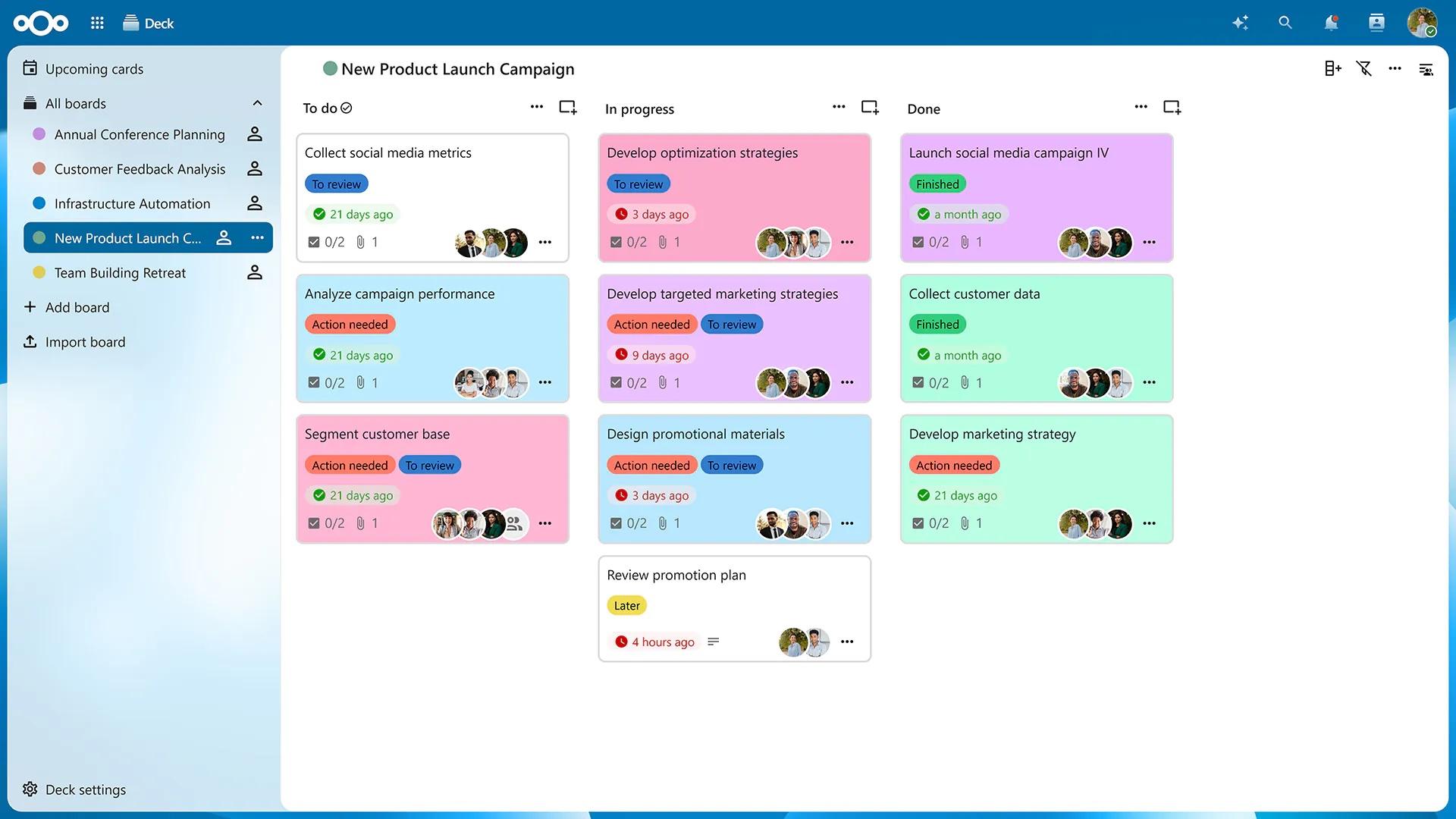
Do you prefer #kanban boards or #Gantt charts to get an overview of your projects?
In #Nextcloud Deck, you can now have both ✅
Learn more about the latest updates: https://nextcloud.com/blog/nextcloud-deck-kanban-board-gantt-chart-app-for-teams/
![[?]](https://sfo3.digitaloceanspaces.com/veganism-space/accounts/avatars/117/196/338/432/085/580/original/a6f8744d8a5a3d18.jpg)
This makes my head hurt the more I look at it. A coalition for independent tech (good), directing people to google docs (bad) to read a report about....
.... resisting corporate.... capture... (wtf)
#NextCloud without enabling AI could have been a better option.

Alt...
Screenshot of a toot from an account that promotes using independent tech by avoiding big tech options. I drew red arrows on the screenshot that shows that their report is hosted on Google.
![[?]](https://social.anoxinon.de/system/accounts/avatars/000/079/552/original/231fc6938aaf9353.png)
Nextcloud: Daten besser ordnen mit zusätzlichen Konten
Zusätzliche Nextcloud-Konten für Datenbestände erhöhen die Übersicht im eigentlichen Dokumentenbereich.
#Nextcloud #Konten #Übersicht #Linux
https://gnulinux.ch/nextcloud-daten-besser-ordnen-mit-konten
![[?]](https://storage.gra.cloud.ovh.net/v1/AUTH_91eb37814936490c95da7b85993cc2ff/bildungsocial/accounts/avatars/108/203/730/675/362/467/original/5875fe5224be57b4.jpg)
Habe einen kleinen Artikel bei FOSSWELT/gnulinux.ch geschrieben:
"Nextcloud Daten besser ordnen mit Konten"
https://gnulinux.ch/nextcloud-daten-besser-ordnen-mit-konten
![[?]](https://cdn2.miau.pub/accounts/avatars/110/848/627/554/056/006/original/903951fd3def2cdc.png)
Ich bin überrascht wie zufrieden ich mit #NextCloud Deck bin. Ich dachte ich vermisse mehr der eher speziellen Features von #Trello, aber nö. Deck ist sogar durch seine Einfachheit besser, weil ich dann nicht so viel Zeit in spezielle Automation stecke, die ich dann wieder debuggen muss. Habe jetzt seit mehreren Wochen ein Projekt in Deck verfolgt und es ist einfach nicht im Weg, aber da, wenn ich es brauche. Absolute Spitze 🙂
![[?]](https://social.heise.de/__virtual/accounts/avatars/109/716/897/046/687/069/original/3e4fb0c2076b5f24.png)
Angriffe auf Arista VeloCloud und Collabora/Nextcloud beobachtet
Angreifer nutzen eine Lücke in Collabora und installieren Webshells auf Nextcloud-Servern. Auch Arista VeloCloud wird attackiert.
#Cyberangriff #Exploit #IT #Nextcloud #Security #Sicherheitslücken #Updates #news
![[?]](https://tooting.ch/system/accounts/avatars/108/429/569/235/054/531/original/ac8b86f74dadbf0b.jpg)
RE: https://mastodon.social/@newsbot_google/117505253613648287
Zeit für eine #Nextcloud.
Und ein #Linuxphone.
![[?]](https://s3.c.im/accounts/avatars/109/328/769/757/313/966/original/a0012e9c5b0221ed.png)
Alô #ExercitoDoLula avisa O #PresidenteLula que:
Com o #Fediverso nós podemos atingir a #SoberaniaDigital !
#Jabber #OMEMO #Conversations #XMPPChat #FederatedMessaging #MensageriaFederada #Signal #SignalApp #SignalProtocol #PrivateMessaging #MensagensPrivadas #Criptografia #E2EE #SimpleX #SimpleXChat #SimpleXNetwork #NoUserIDs #PrivacyFirst #Privacidade #Matrix #MatrixProtocol #Element #ElementX #MatrixChat #DecentralizedChat #ChatFederado #Jitsi #JitsiMeet #OpenSourceVideo #VideoConferencia #ReunioesLivres #SelfHosted #Nextcloud #NextCloudHub #SelfHosting #AutoHospedagem #CloudSoberana #OpenSourceCloud #NextcloudFiles #Riseup #RiseupNet #RiseupVPN #ActivistTech #TechActivism #TecnologiaAtivista #DigitalAutonomy #AutonomiaDigital #Proton #ProtonMail #ProtonVPN #ProtonDrive #ProtonPass #PrivacyByDesign #PrivacidadeDigital #EncryptedEmail #FreeSoftware #SoftwareLivre #Privacy #Privacidade #DigitalRights #DireitosDigitais #SelfHosted #AutoHospedado #Decentralization #Descentralização #Fediverse #Fediverso #DataSovereignty #SoberaniaDigital #E2EE #NoTracking #SemRastreamento #SurveillanceCapitalism #CapitalismoDeVigilância

![[?]](https://files.mastodon.social/accounts/avatars/112/213/650/803/712/782/original/057111d43632f8e6.jpg)
@benlockwood Indeed, yet I find asking myself:
Why anyone signs up for or uses 'their catastrophe-nurturing bros' stuff?
Why not engage+fund decentralized, community-driven tech/services?
Why not engage in villages setup #FOSS cloud stacks: #nextcloud, #matrix #officetools #immich, #jellyfin - PLUS: local #AI #LLM service.
Documentary, published by our national broadcaster a few weeks ago:
"the most dangerous companies in the world"
https://on.orf.at/video/14334766/die-gefaehrlichsten-firmen-der-welt-big-tech-1-2-der-aufstieg-der-datenkraken
yet schools push and use #ipads?
![[?]](data:image/png;base64, iVBORw0KGgoAAAANSUhEUgAAAEAAAABAAQAAAACCEkxzAAAAUUlEQVQoz43R0QkAMQwCUDdw/y3dwEvsvzlL4X1IoQkAisKmwfAFT3RgJHbQezpSRoXEqeqCL9BJBf7h3QbOCCxV5EVWMEMwG7K1/WODtlvxAYTtEsDU9F34AAAAAElFTkSuQmCC)
🤖 CISA KEV: two critical flaws actively exploited. CVE-2026-110447 (9.2) — OS command injection in Collabora Online Built-in CODE Server (Nextcloud richdocumentscode), exploited to backdoor Nextcloud with web shells. CVE-2026-114625 (9.9) — SQLi in Arista VeloCloud Orchestrator, abuse traced to JP IPs. FCEB patch deadline Oct 26.
🔗 https://thehackernews.com/2026/10/cisa-flags-two-actively-exploited.html
#CVE #CyberSec #Exploit #Nextcloud
![[?]](https://files.mastodon.social/accounts/avatars/000/791/787/original/6836db73ab853e5e.jpg)
So uh, if we all federate our Nextcloud instances then we could use Nextcloud Talk for decentralised instant messaging, no?
If you judge this a terrible idea, can I ask you to ELI5 why?
![[?]](https://files.mastodon.social/accounts/avatars/117/003/173/064/671/102/original/ea46e2b22796b8f7.png)
I regularly see calls to rewrite #Nextcloud in #Rust or #Go or just plain spite for Nextcloud being written in #PHP. Now I am writing a blog post about why that actually is a bad idea.
![[?]](https://s3.eu-central-2.wasabisys.com/mastodonworld/accounts/avatars/109/298/598/872/796/627/original/ab64d8a502e8b247.png)
#today I'm testing the calendar notifications reliability on my #NextCloud account. So far they seem to be coming in a few minutes late.
Looking forward to being able to trust this with my daily business, and only then recommend it to friends trying to #degoogle. Teething problems tho
![[?]](https://files.sueden.social/accounts/avatars/116/335/069/863/720/916/original/ed84851ec577bb6e.png)
@ruebe5w aus dem Grund habe ich mich auch für ein Hosting Angebot entschieden. Bin bei wolkesicher. Die haben einen kompetenten und schnellen support. Die Lücke war gestern Mittag schon geschlossen. Und in der Nextcloud kann man relativ frei Apps installieren usw.
Ich hatte auch angefangen das selbst zu machen. Aber richtig sinnvoll finde ich das nur mit Internet Zugriff. Und da verlasse ich mich lieber auf Leute, die sich besser auskennen.
#NextCloud #wolkesicher
![[?]](https://files.layer8.space/accounts/avatars/109/250/677/142/012/203/original/db7032b5efbcfacf.png)
Meine Nextcloud ist nach den PHP-Lücken immer noch offline, ich habs einfach noch nicht geschafft, die Patches einzuspielen.
Ich hinterfrage aktuell auch ein bisschen, ob ich eigentlich weiter Webservices offen im Internet betreiben will. Oder ob ich nicht z.B. die Nextcloud auf eine managed-Version umziehen will, wo Updates usw. beim Hoster liegen🤔
![[?]](https://eupolicy.social/system/accounts/avatars/108/538/138/938/163/395/original/e2c964e194b29d71.jpg)
#FollowerPower : For an office team #chat and (internal and external) video call software, kinda replacing Slack and Zoom for an organisation that already uses #Nextcloud for file sharing, editing and other things, which one would you choose?
(Must be #FOSS, explanations as reply welcome.)
| Nextcloud Talk (with HPB): | 8 |
| Matrix (with Element): | 9 |
| Something else: | 6 |
Been #degoogle -ing my #tasks lists, trying to export them into #NextCloud.
Pasting them into Obsidian might be more effective!
The 3rd-party-converted JSON-to-.ics file imports ok (there be dragons?), and...
...no imported tasks to be seen anywhere in NextCloud tasks app.
Could it be because none of my old G tasks ever had dates on them at all?
Do tasks have to become calendar entries, to count as importable?
tl;dr: Seeking diagnostic help with exporting #google tasks to nextcloud.
TYVM
![[?]](https://peertube.nextcloud.com/lazy-static/avatars/5b4f697a-c2a3-46f7-be0f-d94b0b2acd59.png)
Amnesty International Spain gained independence from Big Tech with Nextcloud
Amnesty International involves more than 7 million people worldwide. With Nextcloud, its Spanish branch can now use the kind of tools that used to be available only from big US tech companies, on their own terms.
Carlos' advice for anyone making the move: set clear expectations, plan your change management, and train your users. With Nextcloud's feature set growing with every version, the trade-offs of migrating keep shrinking.
Using Nextcloud empowered Amnesty International Spain to:
🤝 Work with activists, suppliers, and staff in a decentralized, hybrid way
⚙️ Self-host the entire platform and keep full control over its data
🔐 Truly own its tools, thanks to free software that no single entity can control
Curious what Nextcloud can do for your organization? Read all our success stories: https://nextcloud.com/success-stories/
Want to dive right in? Try Nextcloud today: https://nextcloud.com/instant-trial/
▶️ Subscribe for more real-world digital sovereignty stories from NGOs, education, government, and enterprise: https://www.youtube.com/channel/UCQjN5Fs5QSz1loJqLb5bkew
![[?]](https://files.mastodon.social/accounts/avatars/114/540/225/875/985/890/original/cbf27a5d21446723.png)
Ob #Buch, Studienarbeit oder Geschäftliches – du schreibst oder bearbeitest Texte noch unter Windows und hast ein mieses Gefühl dabei?
Am 31.10.2026 halte ich beim DI.DAY #Esslingen Kurzvorträge über #Linux für Autor:innen, #LinuxMint und die eigene souveräne Cloud mit #Nextcloud. Für Schreibende auch interessant: kostenlose Linux-Installation und -Beratung.
Mehr Info und Programm: https://ba-rskn.de/di-day/
#diday #Stuttgart #Selfpublishing #Bookstodon #Lektorat #schreiben #autor #autorin

Alt...
Einladungsplakat in Orange und Lila mit QR-Code. Text:
DI.DAY Esslingen
Forum für digitale Unabhängigkeit
www.ba-rskn.de/di-day
31. Oktober 2026
10:00 bis 16:00 Uhr
Bürgerhaus RSKN
:RSKN Der Bürgerausschuss
![[?]](https://files.mastodon.social/accounts/avatars/000/564/424/original/b0456e37e5ac93ad.jpeg)
If you have to fix your #nextcloud #wordpress #opendesk whatever PHP legacy code now: Remember you are only doing the work that for twenty years the people you paid didn't do.
Pay the open source developers. Pay them more. The core people in the community are not necessarily at the companies or NGOs you pay.
@rede
Que tal mandar um alô pro ExercitoDoLula com um: #QueroPlanoDigital nos primeiros 10min da Live de 24h?
Bora puxar essa onda 🌊 ?
Aposto que boa parte do #Fediverso vai estar ligada nas redes das BigTex nessa hora.
#Jabber #OMEMO #Conversations #XMPPChat #FederatedMessaging #MensageriaFederada #Signal #SignalApp #SignalProtocol #PrivateMessaging #MensagensPrivadas #Criptografia #E2EE #SimpleX #SimpleXChat #SimpleXNetwork #NoUserIDs #PrivacyFirst #Privacidade #Matrix #MatrixProtocol #Element #ElementX #MatrixChat #DecentralizedChat #ChatFederado #Jitsi #JitsiMeet #OpenSourceVideo #VideoConferencia #ReunioesLivres #SelfHosted #Nextcloud #NextCloudHub #SelfHosting #AutoHospedagem #CloudSoberana #OpenSourceCloud #NextcloudFiles #Riseup #RiseupNet #RiseupVPN #ActivistTech #TechActivism #TecnologiaAtivista #DigitalAutonomy #AutonomiaDigital #Proton #ProtonMail #ProtonVPN #ProtonDrive #ProtonPass #PrivacyByDesign #PrivacidadeDigital #EncryptedEmail #FreeSoftware #SoftwareLivre #Privacy #Privacidade #DigitalRights #DireitosDigitais #SelfHosted #AutoHospedado #Decentralization #Descentralização #Fediverse #Fediverso #DataSovereignty #SoberaniaDigital #E2EE #NoTracking #SemRastreamento #SurveillanceCapitalism #CapitalismoDeVigilância

![[?]](https://mastodon.blablalinux.be/system/accounts/avatars/113/675/429/104/963/472/original/6baf4240c1614c5a.jpg)
🚨 Failles critiques PHP publiées hier ? Mes 3 serveurs (2 Nextcloud + 1 WordPress) sont déjà patchés, redémarrés et vérifiés ✅ Astuce : après un apt upgrade, pense à redémarrer Apache/PHP-FPM, sinon l’ancien code reste en mémoire ! 😉 #PHP #Linux #Nextcloud #WordPress #LogicielLibre
![[?]](https://files.mastodon.social/accounts/avatars/000/498/855/original/5809DecaTec_round_transparent.png)
Nach der gestern bekannt gewordenen PHP-Sicherheitslücke, ist es höchste Zeit, eure Server zu patchen (z.B. wenn ihr darauf eine #Nextcloud betreibt).
Im Blog findet ihr die Information, mit welchen PHP-Versionen pro Distribution/Installationsvariante die Lücke geschlossen ist und wie ihr die Updates durchführen könnt.
https://decatec.de/allgemein/schwere-php-sicherheitsluecke-bitte-aktualisiert-eure-server/
#Homeserver #Security #PHP #php2shell
![[?]](https://files.mastodon.social/accounts/avatars/111/046/129/133/358/714/original/8e4b1bcd83aea93f.png)
I'd like to take this opportunity to say a big thank you—especially to the AIO team—for patching the software so quickly 👍
![[?]](https://cdn.masto.host/socialhetzelnet/accounts/avatars/109/841/643/313/702/661/original/d3dc0060d4947bca.jpeg)
#Nextcloud bei Hetzner war den ganzen Tag gestern down. Heute kommt sie wieder hoch und alle Ordner sind dupliziert. Einmal voll, einmal leer.
Was für ein räudiges Stück Software.
![[?]](https://s3.eu-central-2.wasabisys.com/mastodonworld/accounts/avatars/109/378/331/109/488/612/original/6b60daa0480cb5ba.jpeg)
![[?]](https://files.layer8.space/accounts/avatars/109/462/208/665/804/734/original/a94689b63399abff.jpg)

Oh my, #PHP is in the German evening news!
It seems version 8.3.6-0ubuntu0.24.04.13 contains the back-ported fix of #PHP2Shell. Luckily, i only have to take care of my personal #Nextcloud instance.
Trying to #degoogle here. Got calendar exported ok, but am struggling to find how to import the exported #JSON task list into #nextcloud provided by #disroot.
Seems you have to try to convert the JSON task list to an .ics file, but my searches run out of road here, having more to say about converting for events rather than #tasks.
tl;dr:
Please help export google tasks into nextcloud tasks.
TYVM
![[?]](https://f2.tchncs.de/accounts/avatars/115/831/007/701/174/739/original/3b56685bc83e8d8f.png)
Wegen #PHP2shell habe ich unsere #Nextcloud Instanzen erstmal offline genommen. Betreibe das hier mit den AIO Images.
Wie handhabt ihr das?
#selfhosting #homelab #php
![[?]](https://files.sfba.social/accounts/avatars/109/522/420/176/989/840/original/7f7596a8105013c3.png)
Is it time to move away from #nextcloud given its still running #php ? Are there easy paths to transition to more modern self hosted platforms ?
![[?]](https://media.bsd.cafe/bsdmmedia01/accounts/avatars/114/932/322/584/208/816/original/e8177168b64868c0.jpeg)
Nextcloud AIO bug report about PHP CVEs:
![[?]](https://media.infosec.exchange/infosec.exchange/accounts/avatars/114/935/137/081/777/784/original/cbb4035305db2424.png)
If you're running #Nextcloud or any other PHP application, whether in containers or natively, update your PHP installations!
Especially if you're using Apache with mod_php, which is considered the highest-risk configuration for #PHP2Shell.
The #Debian Security Team has already released PHP 8.4.27-1~deb13u1 for #Trixie.
Happy host and container patching :)
![[?]](https://f2.tchncs.de/accounts/avatars/000/267/262/original/bdd4564856c869d7.jpg)
@bjoern
Armbian Pakete von https://packages.sury.org/php sind vorhanden - soeben installiert auf meinem Nextcloud SBC und php8.3-fpm neu gestartet.
@kuketzblog
#nextcloud #PHP #armbian #sury
![[?]](https://social.cloudron.io/system/accounts/avatars/000/000/002/original/bfee62bca18f0d84.png)
![[?]](https://cdn.cupoftea.social/accounts/avatars/113/002/384/951/734/170/original/06f2930cbcce7708.jpeg)
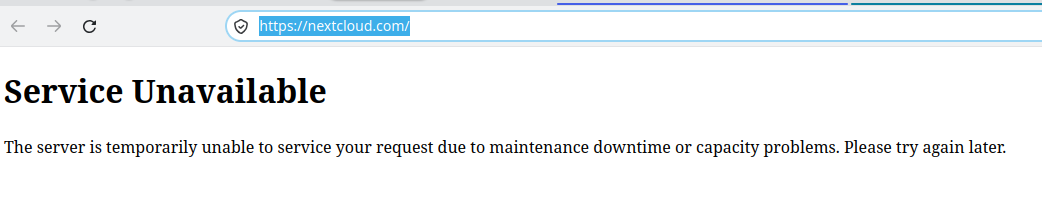
and even though we have a presence on #mastodon we haven't bothered to post anything since August 2025.
Today would have been a good day to do so @thegoodcloud
![[?]](https://meerjungfrauengrotte.de/system/accounts/avatars/110/531/351/158/427/115/original/d95ca33762993abe.png)
Okay, offenbar wird die PHP2Shell-Lücke in PHP bereits ausgenutzt, zumindest gibt es Proofs of Concept dafür.
Trennt Eure PHP-Webseiten vom Netz, bis Euer PHP gefixt ist. Durch Euch selbst (VPS oder Dedicated Server) oder durch Euren Hoster (Web Hosting Pakete).
Das betrifft alle PHP-Seiten, z. B. Joomla, Nextcloud, Pixelfed, phpMyAdmin usw.
Mastodon nutzt kein PHP und ist darum nicht direkt gefährdet.
![[?]](https://media.mathstodon.xyz/accounts/avatars/109/404/767/338/318/455/original/1d7493c186e3ec70.png)
![[?]](https://media.nrw.social/accounts/avatars/110/644/372/944/668/725/original/600d27acdeb0db35.png)
Nextcloud Classic Menu
Wer das neue Waffel-Menü zu umständlich und zeitraubend findet, bekommt mit dem Classic-Menu das Beste aus beiden Welten.
![[?]](https://social-coop-media.ams3.cdn.digitaloceanspaces.com/accounts/avatars/108/888/066/480/740/672/original/98a8f5335bbc239c.jpg)
🚨 A heads-up for anyone running #WordPress, #Moodle, #Nextcloud or other PHP-based services.
PHP has confirmed two critical vulnerabilities, both rated 9.2/10. Fixes are scheduled for today, 21 October, at 14:00 UTC.
Prepare to patch PHP, not just your applications. CERT-EU advises considering temporary isolation of public-facing services if prompt patching isn't possible.
It sounds pretty bad. Affected versions are not yet confirmed but I've heard 5.4+
![[?]](https://cdn.mstdn.ca/accounts/avatars/115/030/406/468/099/466/original/ad38e485675b0d73.png)
I picked the perfect time to delete #nextcloud off my home server two days ago. Maybe I should buy a lottery ticket 🤔
Wenn Ihr Websites auf Basis von PHP (Nextcloud, Joomla, Pixelfed, phpMyAdmin...) betreibt, sollte Ihr wissen, dass zwei schwerwiegende Sicherheitsprobleme in PHP ab Version 5 gefunden wurden.
Abgesicherte Versionen werden heute ab 16 Uhr MESZ veröffentlicht, die solltet Ihr dann so schnell wie möglich einspielen. Oder Eure PHP-Webseiten vom Netz trennen.
![[?]](https://media.infosec.exchange/infosec.exchange/accounts/avatars/109/246/514/704/453/333/original/9554bb70f2599a84.png)
 [
[Don't forget that #Nextcloud runs on PHP so for those of you who tend to set it and forget it, keep an eye out for those PHP patches tomorrow.
![[?]](https://media.troet.cafe/troet/accounts/avatars/000/196/045/original/9910b2a073e96915.png)
Am nächsten #DiDay in #oldenburg geht es um das Thema #nextcloud.
Kommt vorbei, um euch von Big Tech zu befreien.
Am 1.11.26 ab 18 Uhr im Mainframe, nahe dem Bahnhof.

Alt...
Flyer für DiDay Oldenburg
![[?]](https://media.mementomori.social/accounts/avatars/110/673/270/103/943/263/original/172b5e6e32c39b2e.jpg)
Interesting, there seems to be developing new #keepass compatible version for password management in #nextcloud, Highly welcomed,
![[?]](https://cdn.fosstodon.org/accounts/avatars/000/110/088/original/4da529e121b6a01d.png)
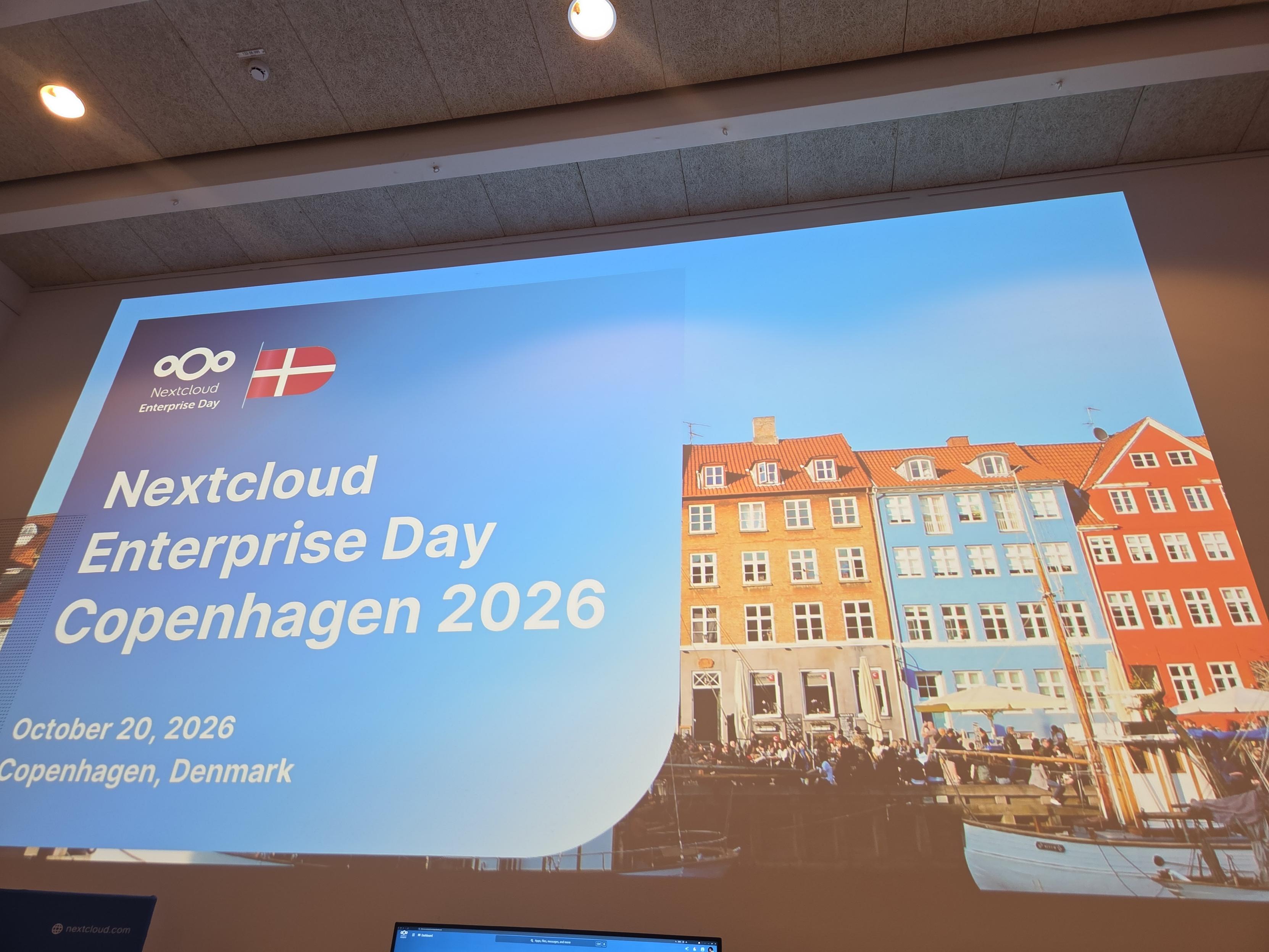
If anyone is at the @Nextcloud Enterprise Day in Copenhagen today, come say hi! 👋
#nextcloud #nextcloudconf2026 #opensource #openproject #conference
Alt...
A big banner saying Nextcloud Enterprise Day Copenhagen 2026

Alt...
A selfie with my badge
![[?]](https://media.ruhr.social/ruhr-social/accounts/avatars/108/202/584/756/446/441/original/f6093f4638fa168d.jpg)
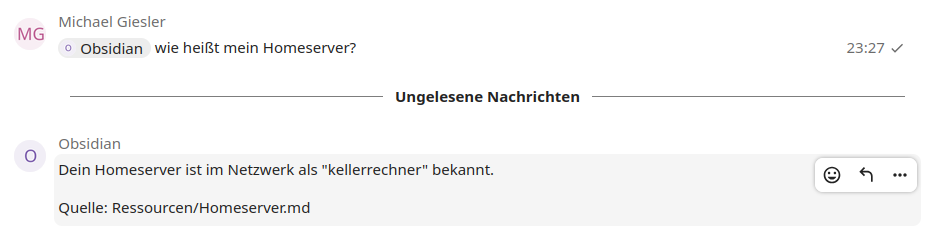
Man kann mit KI schon geile Sachen machen. Seit heute morgen steht in meinem Keller ein kleiner Rechner. 100€ refurbed. Darauf ein #Linux, #Obsidian und #Nextcloud-Sync. Sowie eine kleine Applikation, die die Texte in beiden Systemen per #ollama und #embeddinggemma in #Vektoren übersetzt. Per #LongPolling horcht eine kleine Applikation auf einen Nextcloud #Talk Chat, und beantwortet Fragen. Für letzteres ist dann doch noch ein billiges externes #LLM über #Mammouth eingebunden.
Alt...
Ein Screenshot von Nextcloud Talk.
Michael Giesler fragt: "@Obsidian, wie heißt mein Homeserver?"
Obsidian antwortet: "Dein Homeserver ist im Netzwerk als "kellerrechner" bekannt.
Quelle: Ressourcen/Homeserver.md"
![[?]](https://static.mamot.fr/accounts/avatars/000/234/585/original/83c1d54513c3184b.jpg)
y'know what would be a marriage made in heaven? Or close to it?
#Nextcloud on #OpenBSD.
With #EuroOffice, #ZFS, #NextcloudTalk, #encryption, #federation, #2FA, and the kitchen sink of options in Nextcloud's apps and services… #FLOSS platforms developed in the #EU and #Canada and the rest of the world.
Fully able to displace US-based #BigTech / #BusinessBigTech straight out of the box, and running on pipes direct to #Europe with #Norway's help, and to #Asia w/ #CPTPP.
This could be good.